# Getting started with the NHS App
> What the NHS App does, who can use it, how to set it up on a phone or computer, how to prove who you are and where to get help.
- URL: https://digitalhealthcoachuk.net/nhs-app-getting-started/
- Section: Using NHS services online
- Page type: guide
- Last updated: 2026-10-28
- Facts checked against official sources: 2026-10-28
- Written by: Sean Key, digital health programme manager (not a clinician)
- Publisher: Digital Health Coach UK (https://digitalhealthcoachuk.net/), independent and not part of the NHS
This page is general information, not personal medical advice. In an emergency call 999. For urgent help that is not an emergency use NHS 111 online (https://111.nhs.uk/) or call 111.
The NHS App lets you order repeat prescriptions, manage GP appointments, see test results and parts of your GP record, and much more. It is free. You can use it if you are 13 or over and registered with a GP surgery in England (or the Isle of Man). You can use the app on a phone or tablet, or log in through the NHS website on a computer.
Setting up takes a little time, mainly to prove who you are. Have your phone and some photo ID to hand before you start.
## What the NHS App can do
Once you have proved who you are, the app can let you:
- order repeat prescriptions and choose the pharmacy they go to (see [repeat prescriptions](https://digitalhealthcoachuk.net/repeat-prescriptions/))
- book, check and cancel GP appointments, or fill in a form about a health problem, where your surgery offers this
- ask your GP surgery for a letter or information, such as a fit note, where your surgery offers this
- see test results, documents and appointment notes from your GP record (see [your GP record](https://digitalhealthcoachuk.net/gp-record/))
- see your vaccinations, and your allergies and health conditions, depending on your surgery
- book a flu or COVID-19 vaccination, if you are eligible (you can also book online or by calling 119)
- read messages from your GP surgery and other NHS services
- view and manage some hospital and specialist appointments and referrals
- check waiting times after a hospital referral (if you are 16 or over)
- contact your GP surgery with a non-urgent question, where your surgery offers this
- see your NHS number and update your health choices, including your [organ donation decision](https://digitalhealthcoachuk.net/organ-donation/) and [how your data is used](https://digitalhealthcoachuk.net/nhs-data-choices/)
- help someone you care for, through [family and carer access](https://digitalhealthcoachuk.net/proxy-access/)
Without proving who you are, you can still use NHS 111 online, the NHS website's health information and the "find services near you" tool.
What you see depends on your GP surgery. Surgeries can switch some services off, such as online appointment booking, and the layout varies between GP computer systems.
The app changed in March 2026. If your app looks different from older guides or videos, that is probably why. You may need to update it from your app store. The new layout is:
- **Home screen:** six main options: **Prescriptions**, **Appointments**, **Test results**, **Vaccinations**, **Health conditions** (some surgeries call it **Allergies and adverse reactions**) and **Documents**. Below them, **NHS information and support** has 111 online, the Health A to Z and "Find services near you".
- **App help:** a button at the top right of the screen, if you get stuck.
- **Menu bar** at the bottom: **Home**, **Messages** (from your GP surgery or hospital) and **Profile** (your details, family and carer access, app settings, and log out).
## Who can use it
You need to be 13 or over and registered with a GP surgery in England or the Isle of Man. If you are 13 to 15, ask your GP surgery for access to GP online services before you use the app. People registered with Defence Medical Services cannot use it.
### If you live in Scotland, Wales or Northern Ireland
Each nation has its own service:
- **Wales:** the [NHS Wales App](https://dhcw.nhs.wales/nhs-wales-app-resource-centre/gp-practice-toolkit/introduction/), for people 16 or over registered with a GP practice in Wales.
- **Scotland:** [MyCare.scot](https://www.gov.scot/news/mycare-scot-available-on-app-store/), for people 18 or over. In June 2026 the app could show your medicines, allergies and vaccinations, with more features planned.
- **Northern Ireland:** [My Care](https://dhcni.hscni.net/digital-portfolio/encompass/my-care/), which shows some hospital and community records, such as medicines, appointments and some test results. It does not show GP records.
## Before you start
You will need:
- an email address that only you use (more than 6 characters long). You cannot use an email address someone else has already used for their NHS login.
- a phone number for security codes: a mobile, or a landline, where an automated call reads out the code
- your NHS number if you know it (it helps, but you can set up without it)
- a phone or tablet with enough free storage, or a computer with a supported web browser
- photo ID, or your GP online services registration details (explained below)
Choose a quiet time. Your name, postcode, email address and phone number need to match what your GP surgery holds, so if anything is out of date, ask them to update it first. The quickest way to prove who you are only works with the mobile number on your NHS record. If you have changed your number, or given a different one to a hospital, ask your GP surgery which number it has.
You may find it easier to print this page, or open it on a second device, so you can follow the steps while you set up.
## Setting up on a phone or tablet
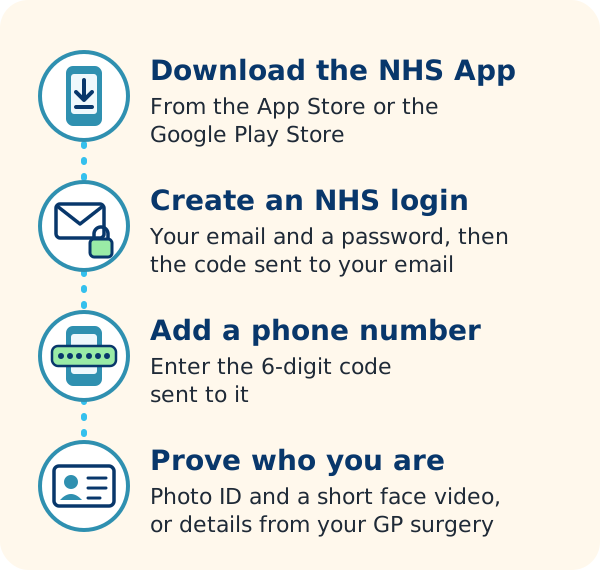
These buttons take you straight to the official NHS App:
Download NHS App: [App Store](https://apps.apple.com/gb/app/nhs-app/id1388411277), [Google Play](https://play.google.com/store/apps/details?id=com.nhs.online.nhsonline)
1. Open the App Store (iPhone or iPad) or the Google Play Store (Android), or use the buttons above.
2. Search for "NHS App" and pick the one showing the NHS logo.
3. Select **Get** or **Install**, then **Open** when it has downloaded.
4. Select **Continue**, then **Create NHS account**. Enter your email address.
5. Create a password, agree to the terms of use, then enter the 6-digit code sent to your email.
6. Enter your mobile number, then the 6-digit code sent to it. No mobile? Select **I do not have a mobile phone**, then use your landline. An automated call reads out the code straight away, so be by the phone.
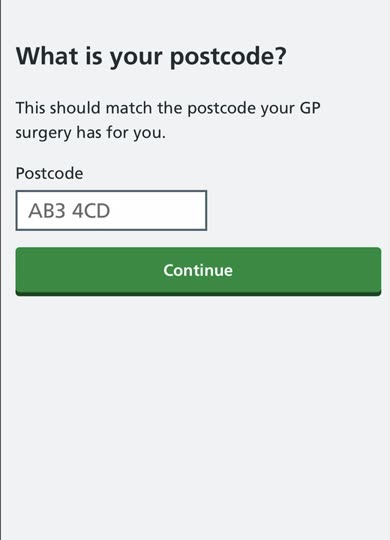
7. Enter your NHS number if you know it, then your date of birth and postcode. If you do not know it, say so and enter your name as well. This matches you to your NHS record.
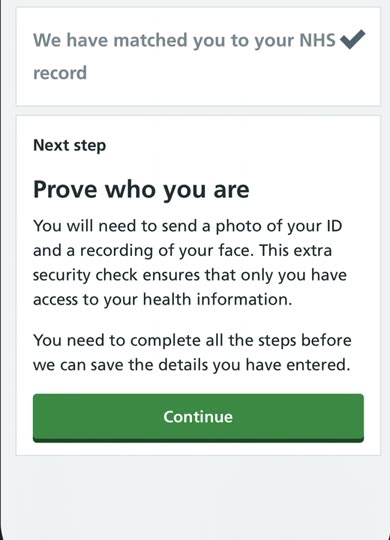
8. Prove who you are (see below). You may be able to skip this if your GP surgery has already set you up for online services and your details are up to date.
What the set-up screens look like (from the NHS's own video):
Create an account: select Continue
Enter your email address
Create a password and agree to the terms
Enter the code sent to your email
Enter your mobile number
Enter the code sent by text
Say whether you know your NHS number
Enter your postcode
Matched to your record: now prove who you are
Screens: NHS, from the video "How to set up an NHS login using photo ID" on the NHS website. Your screens may look slightly different.
This short NHS video shows how to download the app:
- [How to download the NHS App on iPhone and Android](https://www.youtube.com/watch?v=wD8eNPLww4Y) (video, NHS, with British Sign Language)
Do not install the app on a phone that has had its software restrictions removed ("jailbroken"). On a shared device, other people may be able to see your health information, so set a screen lock.
## Using NHS App services on a computer
You do not need to download anything. Go to the [NHS account log-in page](https://www.nhs.uk/nhs-app/account/) on the NHS website and log in with the same NHS login.
Your browser needs JavaScript switched on. The layout is a little different from the app. Face and fingerprint log-in are not available on a computer, but you can set up a passkey instead.
## Proving who you are (NHS login)
NHS login is the account that sits behind the NHS App. To see personal information such as prescriptions and records, you must prove your identity. The quickest way is with photo ID. If you have none, you can use details from your GP surgery instead.
### With photo ID
- **UK passport:** the quickest way. Type in your 9-digit passport number. NHS login checks it directly with the Passport Office, and you should see on screen that you have been matched.
- **Other photo ID:** choose the type of ID and enter its expiry date. Then take a clear photo of the original (not a photocopy or a picture on a screen), or upload a photo of it already saved on your phone.
- **Then record your face** so it can be matched to your ID. The screen flashes and changes colour during the scan. If flashing lights or colours make you feel unwell, you can send a short video of your face instead, reading out 4 numbers. You can say them, sign them in British Sign Language, or write them down and show them.
NHS login then checks your details and emails you the result. If it cannot prove who you are, it tells you what else you can do. Accepted ID includes a passport, a UK driving licence (full or provisional), a UK application registration card, a CitizenCard, a full European driving licence or a European national identity card. ID that expired less than 12 months ago can be used. Bus passes, NHS staff cards and student cards are not accepted.
Biometric residence permits (BRPs) are not on the current list. GOV.UK says all BRPs have now expired and been replaced by eVisas. If you used to rely on a BRP as ID, use another ID from the list, or the GP surgery details below.
### Without photo ID
If your GP surgery is in England, ask them for your three online services registration details. If you have used their online services before, you may already have them.
- **Linkage key:** a long mix of letters and numbers, unique to you. Some surgeries call it a passphrase.
- **ODS code:** a 6-character code for your surgery, starting with a letter. It may be called an Organisation code or Practice ID.
- **Account ID:** either a 7-character code or a 10 to 12 digit number. This is not your NHS number.
When asked, choose **No, I do not have photo ID**, then say you use online services and have all 3 details. Enter them, then your full name as registered with your surgery and your date of birth, and agree to the conditions. NHS login emails you the result.
Each set can only be used once. If you have lost them, ask your surgery for new ones.
The NHS website has short videos showing how to [set up an NHS login with or without photo ID](https://www.nhs.uk/nhs-app/help/videos/).
## Messages and notifications
Messages from your GP surgery and hospital are under **Messages** in the menu bar. Some surgeries have more than one inbox.
To be told when a new message arrives, turn on notifications:
1. Select **Profile**, scroll to **App settings** and select **Notifications**.
2. Select **Go to your device settings** and turn on notifications for the NHS App.
3. Close the NHS App and open it again. This registers your phone for notifications.
It can take up to 24 hours to start working. If you use the app on more than one device, turn notifications on for each one.
## Video guides: using the NHS App
These short NHS videos show the main things you can do once you are set up. They are in the order the NHS suggests, starting with the home screen. Each one is signed in British Sign Language. The [NHS website has the same videos](https://www.nhs.uk/nhs-app/help/videos/) without signing, with transcripts.
- [The NHS App home screen](https://www.youtube.com/watch?v=K3L4LcDTEi4) (video, NHS, with British Sign Language)
- [How to request a repeat prescription](https://www.youtube.com/watch?v=NpRemBNmNqM) (video, NHS, with British Sign Language)
- [How to manage your appointments](https://www.youtube.com/watch?v=u0WFp0iMD5s) (video, NHS, with British Sign Language)
- [How to see your test results](https://www.youtube.com/watch?v=15SfJx9gHTk) (video, NHS, with British Sign Language)
- [How to get messages and turn on notifications](https://www.youtube.com/watch?v=_jHQ32Lu2C0) (video, NHS, with British Sign Language)
- [How to use family and carer access](https://www.youtube.com/watch?v=FAF-P28RfXs) (video, NHS, with British Sign Language)
- [How to see your documents](https://www.youtube.com/watch?v=IGSog6tDyAs) (video, NHS, with British Sign Language)
- [How to ask your GP surgery for a letter or information](https://www.youtube.com/watch?v=sRFBYVZMJtI) (video, NHS, with British Sign Language)
## Getting help to use it
You do not have to work it out alone. Many public libraries in England run free sessions to help people set up and use the NHS App. Some also lend computers or tablets and have free wi-fi, and NHS or GP surgery staff sometimes join the sessions. Ask your local library or GP practice what is available near you.
A family member or friend can also sit with you while you set up. Do not give anyone your password. If someone needs to help you regularly, they can get their own access through [family and carer access](https://digitalhealthcoachuk.net/proxy-access/).
## If you get stuck
- **Logging in, passwords, security codes or proving who you are:** use the [NHS login help centre](https://help.login.nhs.uk/).
- **How to use a feature:** select **App help** at the top right of any screen, or see the [NHS App help pages](https://www.nhs.uk/nhs-app/help/), which have guides and short videos.
- **A technical fault with the app:** use the [NHS App contact form](https://www.nhs.uk/contact-us/nhs-app-contact-us/). The team aims to reply within 48 hours. They cannot give medical advice.
- **Something missing from your record, or a service switched off:** contact your GP surgery.
## When to get help
The NHS App is not for emergencies, and messages to your surgery may not be read straight away.
- **Call 999** if someone has a life-threatening emergency, such as signs of a heart attack or stroke. Do not try to sort it out in the app.
- **Use NHS 111 online or call 111** if you need urgent medical help and are not sure where to go. You can reach 111 online from inside the NHS App too.
- **Contact your GP surgery** if you cannot get into the app and need a prescription or appointment soon. You can still phone or visit as before.
- **Ask a pharmacist** if you have a question about a medicine you already take.
## Sources
- [NHS: NHS App](https://www.nhs.uk/nhs-app/)
- [NHS: Who can use the NHS App](https://www.nhs.uk/nhs-app/setting-up/who-can-use/)
- [NHS: Downloading the NHS App](https://www.nhs.uk/nhs-app/setting-up/downloading/)
- [NHS: Videos about how to use the NHS App](https://www.nhs.uk/nhs-app/help/videos/)
- [NHS on YouTube: NHS App videos with British Sign Language](https://www.youtube.com/@NHS)
- [NHS: Using a computer to access NHS App services](https://www.nhs.uk/nhs-app/setting-up/using-computer-to-access/)
- [NHS: Getting full access to the NHS App](https://www.nhs.uk/nhs-app/setting-up/get-full-access/)
- [NHS: NHS App release notes](https://www.nhs.uk/nhs-app/about/nhs-app-release-notes/)
- [NHS: Help with using the NHS App](https://www.nhs.uk/nhs-app/help/)
- [NHS: How to log in to the NHS App](https://www.nhs.uk/nhs-app/help/logging-in/)
- [NHS: Get technical support for the NHS App](https://www.nhs.uk/contact-us/nhs-app-contact-us/)
- [NHS login: Set up NHS login](https://help.login.nhs.uk/setupnhslogin/)
- [NHS England Digital: Getting patients started with NHS login (mobile number on the NHS record)](https://digital.nhs.uk/services/nhs-login/nhs-login-for-health-and-care/getting-patients-started-with-nhs-login)
- [GOV.UK: Biometric residence permits (BRPs)](https://www.gov.uk/biometric-residence-permits)
- [NHS: Book a COVID-19 vaccination](https://www.nhs.uk/book-covid)
- [NHS: Book a flu vaccination](https://www.nhs.uk/book-flu)
- [NHS login: Use photo ID to prove who you are](https://help.login.nhs.uk/provewhoyouare/withid)
- [NHS login: What to do if you do not have photo ID](https://help.login.nhs.uk/provewhoyouare/withoutid)
- [NHS England Digital: How libraries can help people use the NHS App](https://digital.nhs.uk/services/nhs-app/toolkit/libraries)
- [NHS England: 1,400 libraries now offering people support to use NHS App](https://www.england.nhs.uk/2024/11/1400-libraries-now-offering-people-support-to-use-nhs-app/)
- [Digital Health and Care Wales: Introduction to using the NHS Wales App](https://dhcw.nhs.wales/nhs-wales-app-resource-centre/gp-practice-toolkit/introduction/)
- [Scottish Government: MyCare.scot available on app store (17 June 2026)](https://www.gov.scot/news/mycare-scot-available-on-app-store/)
- [Digital Health and Care Northern Ireland: My Care](https://dhcni.hscni.net/digital-portfolio/encompass/my-care/)
- [NHS: When to call 999](https://www.nhs.uk/nhs-services/urgent-and-emergency-care-services/when-to-call-999/)
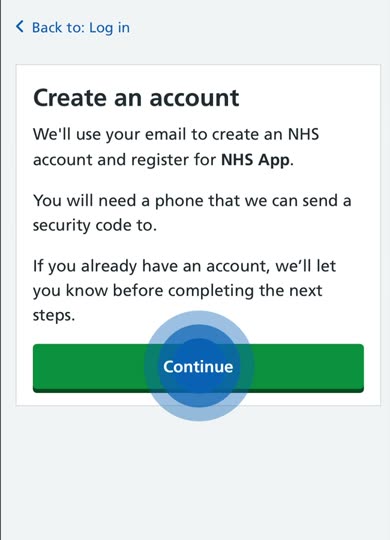 Create an account: select Continue
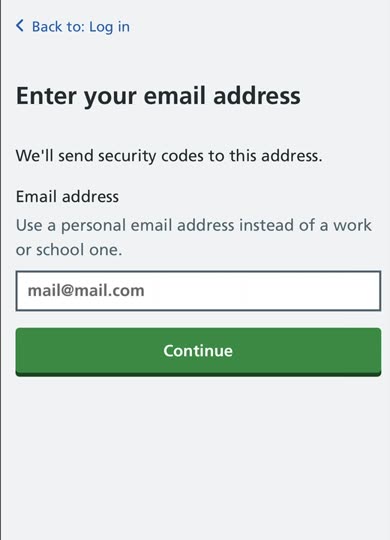 Enter your email address
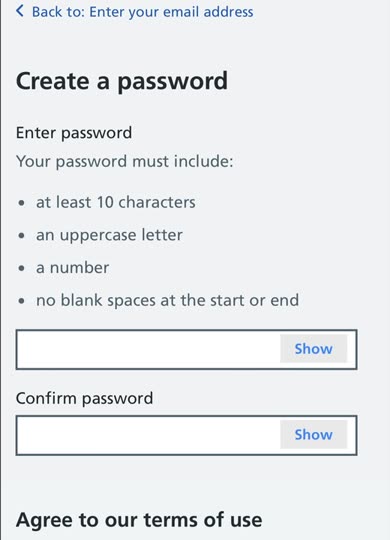 Create a password and agree to the terms
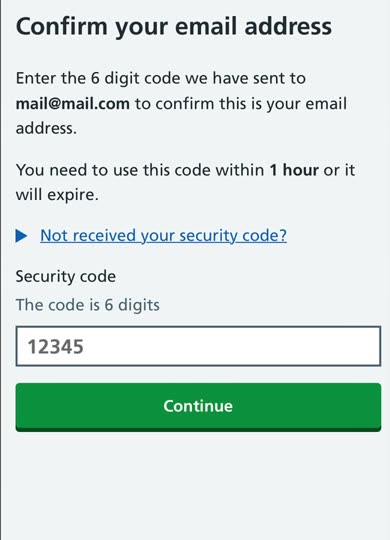 Enter the code sent to your email
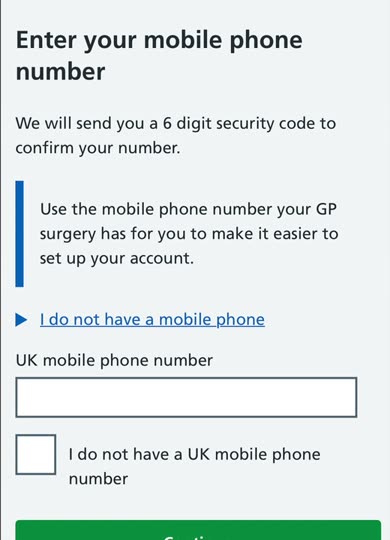 Enter your mobile number
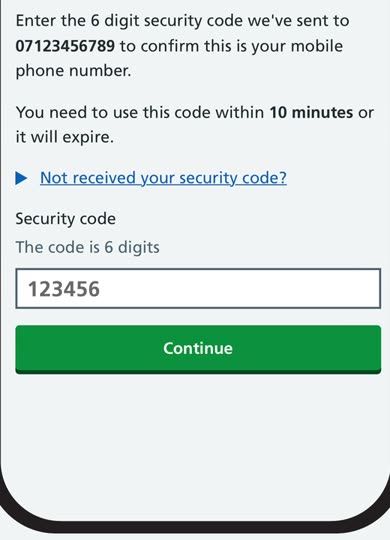 Enter the code sent by text
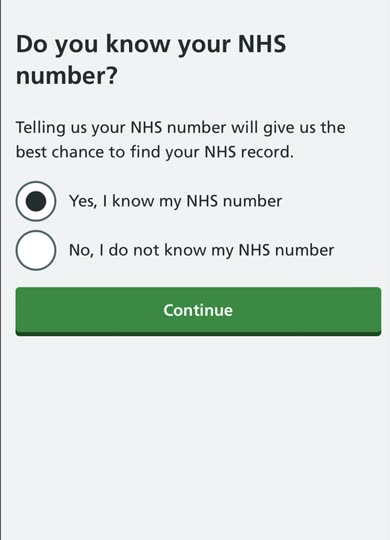 Say whether you know your NHS number
 Enter your postcode
 Matched to your record: now prove who you are